
THe ACtive EDge
Edition 4 | October 2026
July 2026 Freedom Offer
Celebrating America’s 250th & Active DataComm’s 25th year: we are offering FREEdom from onboarding fees. New clients who switch from their current IT provider to an Active DataComm ITDaaS plan will receive FREE onboarding during July 2026.
Get $100 Off On-Site Cybersecurity Training
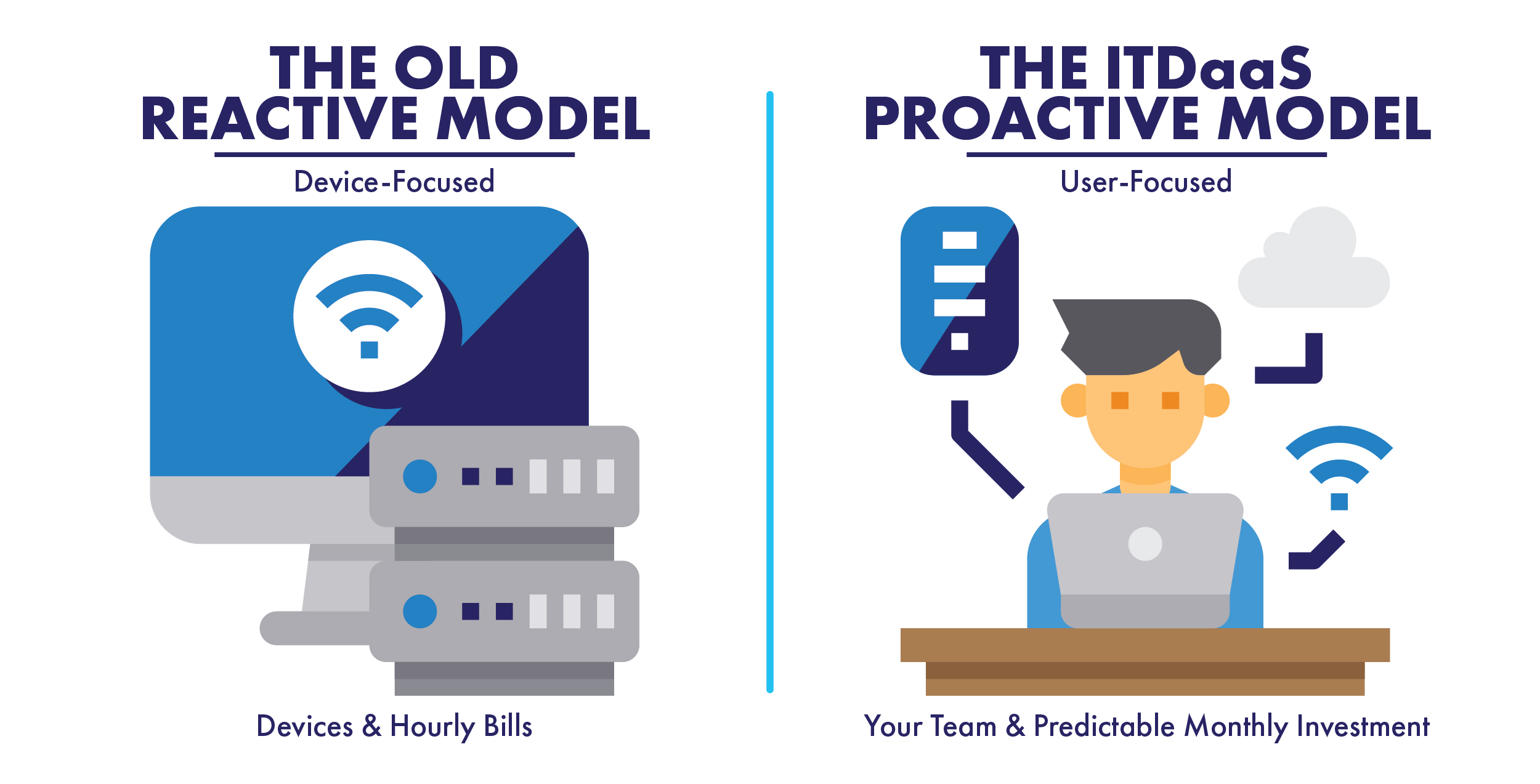
ITDaaS — IT Department as a Service
Your employees are your first line of defense—but without the right knowledge, they can also be your biggest security vulnerability. Equip your staff with the tools they need to protect your business from evolving digital threats.
For a limited time, we are offering $100 off our comprehensive Cybersecurity Training. This isn’t a boring webinar; it’s a dynamic, hands-on session designed to turn your team into a strong human firewall.
What is included:
2-Hour On-Site Session: We come directly to your office for an interactive, in-person experience.
Engaging & Informative Content: We break down complex security concepts in a way that is easy to understand and holds your team’s attention.
Immediately Actionable Takeaways: Your staff will leave with practical, day-one strategies to spot threats, avoid phishing, and secure your company data.
Claim your $100 discount and book your team’s training today!
The Cost of Standing Still
After 25 years in the technology business, I’ve learned that organizations don’t always get into trouble because they make a bad technology decision. Sometimes the problem is simply not making a decision at all.
“We’ll replace that computer next year.”
“That server still works.”
“We’ve always done it this way.”
Individually, those decisions may seem harmless. But over time, outdated equipment, aging software, unsupported operating systems, and temporary fixes begin to accumulate. In our industry, we call that technical debt—and eventually, that debt comes due.
The cost isn’t always a dramatic system failure. Sometimes it’s employees waiting on slow computers, recurring problems that never quite get resolved, increased cybersecurity risk, or spending money maintaining technology that should have been replaced years ago.
The answer isn’t to chase every new technology that comes along. Businesses don’t need the newest of everything simply because it’s new.
But standing still isn’t a technology strategy either.
A good IT plan helps you understand what you have, what condition it’s in, what needs attention now, and what can reasonably wait. That allows technology decisions to become part of your business plan instead of decisions you’re forced to make during an emergency.
— Johnny Fears
IT Director
The Takeaway
You don’t have to chase every new technology—but you can’t afford to ignore aging technology either.
The Action Item
Ask us about an IT Asset Inventory & Scorecard to see where your technology stands today.

Cybersecurity Isn’t Just an IT Problem
October is Cybersecurity Awareness Month, making it a good time to remember that protecting a business from cyber threats takes more than installing security software.
Today’s attacks increasingly target people as much as technology. A convincing email may appear to come from a coworker or vendor. A fake Microsoft 365 login page can look nearly identical to the real thing. An unexpected MFA request may seem harmless. And with artificial intelligence, criminals can create increasingly convincing messages, images, and even voices.
That’s why effective cybersecurity requires layers of protection.
Technology such as endpoint protection, email security, multi-factor authentication, identity monitoring, security updates, backups, and network monitoring can provide strong defenses. But technology works best when it’s combined with good processes and employees who know how to recognize something unusual and what to do when they see it.
The goal isn’t to make employees afraid to open an email or answer the phone. It’s to create an environment where one mistake doesn’t have the opportunity to become a major business disruption.
Cybersecurity is no longer something that belongs only to the IT department. It’s part of protecting your customers, your employees, your reputation, and ultimately, your business.
— Chris Elkins
VP of Technology
Active DataComm
The Takeaway
Your employees are an important layer of your cybersecurity defense. Give them the knowledge and tools to recognize a threat before they become a victim.
The Action Item
Ask Active DataComm about in-person staff security training or ongoing email-based Security Awareness Training for your team.

This month, I want to highlight another practical way I use AI: breaking down screenshots and error messages.
A lot of troubleshooting starts with someone sending a picture of an error, a weird pop-up, or a settings screen that does not immediately tell the whole story. Instead of staring at it and guessing, I can use ChatGPT as a second set of eyes.
It can help identify what the message is saying, point out important details, explain unfamiliar error codes, and suggest what to check next. Sometimes a screenshot contains a small clue—a version number, status indicator, setting, or exact wording of an error—that helps narrow down where the problem may be.
From there, I can use that information to ask better questions and determine the next troubleshooting steps. Maybe we need to check a service, verify a configuration, look at a network connection, or gather additional information from the user.
AI doesn’t replace troubleshooting or the experience of an IT technician. The suggestions still have to be evaluated, tested, and applied to the actual situation. But it can help us get to the right questions faster.
For me, that’s where AI is most useful: faster understanding, better questions, and a clearer next step.
RESULT: Screenshot became a plan.
— Jon Eli Nolan
IT Specialist
The Takeaway
AI doesn’t have to solve the problem to be useful. Sometimes its greatest value is helping you understand the problem faster.
The Action Item
Next time you encounter an unfamiliar error message, take a screenshot before you click it away. That screenshot could provide the clue needed to solve the problem.
Restart Your Video Driver Without Rebooting
Ever had a Windows screen freeze, go black, or start displaying garbled graphics? Before rebooting the computer, there’s a handy keyboard shortcut worth trying:
Windows Key + Ctrl + Shift + B
This Windows shortcut resets the graphics driver without restarting the PC. When you press it, you may hear a beep, and the screen may flicker or go black briefly while the graphics system resets.
It’s a quick first troubleshooting step for certain frozen displays, graphical glitches, or display problems—and if it works, it can save you from an unnecessary reboot and the downtime that comes with it.
It won’t fix every display problem, but it’s an easy shortcut to remember when your screen suddenly isn’t behaving the way it should.
— Michael Smith
Team Leader
The Takeaway
A quick graphics-driver reset may resolve a display problem without requiring a full reboot.
The Action Item
Remember these four keys: Windows + Ctrl + Shift + B. Try them the next time your Windows display freezes or glitches before reaching for the power button.
Don’t Ignore the Little Things
A computer starts running slower. Outlook begins acting strange. A printer needs to be restarted more often. The internet drops briefly, then comes back.
It’s easy to ignore these small issues when everything eventually starts working again. We get busy, find a workaround, restart the computer, and move on with our day.
But sometimes those little annoyances are the first signs of a larger problem.
A failing hard drive may begin with unexplained slowdowns or errors. A network problem may start with occasional disconnects. A software issue might show up as an application that suddenly freezes more often than it used to.
One occurrence may be nothing. But when something starts happening repeatedly, your technology may be trying to tell you something.
Catching these problems early gives us an opportunity to troubleshoot while the issue is still an inconvenience—rather than waiting until it becomes an emergency that interrupts your workday.
Until next time, stay connected.
— Calvin Dotson
IT Specialist
The Takeaway
Your technology doesn’t have to be completely broken before it deserves attention. If something seems different, slower, or requires frequent restarts, let us know.
The Action Item
Notice something that keeps happening? Don’t just work around it. Make a note of what happened, take a screenshot if possible, and send it to the Active DataComm support team.
A few minutes of troubleshooting today may prevent hours of downtime later.
Windows updates are far more than minor software tweaks—they serve as your computer’s primary defense system.
Every month, Microsoft releases background security patches (historically known as “Patch Tuesday”) to fix vulnerabilities that cybercriminals could otherwise use to install malware, steal personal data, or compromise your identity. Beyond security, these routine releases fix system bugs, improve battery life, and deliver new everyday features to keep your PC running smoothly.
To keep your personal computer secure without constant hassle, follow these four simple habits:
Keep Automatic Updates Enabled: Leave the default update settings on so Windows installs critical security patches in the background.
Set Your Active Hours: Adjust your “Active Hours” in Settings > Windows Update so your computer never restarts automatically while you are actively working or gaming.
Don’t Delay Restarts: When you see the small update icon in your taskbar, restart your PC within a day or two to apply pending security fixes.
Upgrade Old Operating Systems: Ensure you are running a supported version of Windows, as unpatched legacy systems no longer receive free security updates and remain vulnerable to emerging threats.
The Takeaway
Windows updates are not just minor annoyances; they are a critical defense system that patches security vulnerabilities, protects your personal data, and improves overall computer performance.
The Action Item
Go to your Windows Settings today to verify that Automatic Updates are enabled, set your “Active Hours” to prevent disruptive reboots while you work, and commit to restarting your computer promptly whenever you see an update notification.
Technology is changing quickly—but some of the biggest technology stories aren’t happening in Silicon Valley. They’re happening right here in Mississippi and the Mid-South.
MISSISSIPPI TECH
- Amazon's planned data-center investment across Mississippi has now reached $25 billion, with the company expecting more than 2,000 jobs across its Mississippi data-center operations.
- WHY IT MATTERS: Mississippi is becoming part of the physical infrastructure behind cloud computing and artificial intelligence.
LOCAL PULSE — LEE COUNTY
- Lee County reports more than $20.6 million in broadband investment, combining nearly $11.9 million in grants with at least $8.7 million in matching investment from internet providers.
- WHY IT MATTERS: Better connectivity strengthens the technology foundation available to homes and businesses throughout our local community.
REGIONAL WATCH — MEMPHIS
- Just down the road, SpaceXAI says its massive Colossus AI supercomputer project in Memphis is planned to reach 1 million GPUs. The company says the original Colossus facility was built in only about four months.
- SHARE THIS ONE: One of the world's most significant concentrations of AI computing power is being built roughly 100 miles from Tupelo.
TECH TIME MACHINE
- The first network email was sent in 1971 by computer engineer Ray Tomlinson. He also chose the @ symbol to separate a person's name from the computer receiving the message—a convention we're still using 55 years later.
- FUN FACT: The @ symbol wasn't invented for email. It had been used in commerce for centuries before Tomlinson gave it a new job.
Local, Regional & Statewide
BUSINESS TECH — AI AT WORK
- As of May 2026, about 19.8% of U.S. businesses reported using AI in at least one business function. Among companies with 250 or more employees, adoption reached 37%.
- THE BIG PICTURE: AI isn't replacing every business process overnight—but it's steadily becoming another everyday business tool.
CYBER WATCH — THE SCARY NUMBER
- The FBI received more than 1 million internet-crime complaints in 2025, representing nearly $20.9 billion in reported losses.
- WHY IT MATTERS: Cybercrime isn't just an IT issue. It's a financial and operational business risk.
TECH TIME MACHINE
- The first network email was sent in 1971 by computer engineer Ray Tomlinson. He also chose the @ symbol to separate a person's name from the computer receiving the message—a convention we're still using 55 years later.
- FUN FACT: The @ symbol wasn't invented for email. It had been used in commerce for centuries before Tomlinson gave it a new job.
Sources: Lee County, SpaceXAI, Amazon, U.S. Census Bureau, FBI and Smithsonian.